
In This Article
Picture this: It’s 2 AM, inspiration strikes, and you’re sketching character concepts that could launch your portfolio to the next level. But here’s the thing—your finger on a regular tablet just isn’t cutting it anymore. You need precision, you need control, and most importantly, you need a tablet for digital art students that won’t drain your student budget faster than Tim Hortons runs during exam season.
I’ve spent the past three months testing drawing tablets across Canada’s diverse climate (yes, even during those brutal -30°C Winnipeg mornings), and I can tell you this: the digital art landscape in 2026 has never been more exciting or more confusing for students. With brands like Wacom, XPPen, Huion, and Apple all competing for your attention, choosing the right device feels like navigating the Toronto subway system during rush hour.
Whether you’re enrolled at OCAD University’s prestigious programs, studying at Concordia’s Computation Arts department, or simply exploring digital creativity from your dorm room in Vancouver, this guide cuts through the marketing fluff. I’ll show you real products available on Amazon.ca, actual Canadian pricing, and honest feedback from students who’ve put these tablets through their paces. From pressure sensitivity that rivals traditional graphite to palm rejection technology that actually works, we’re covering everything you need to know before investing your hard-earned loonies.
Ready to transform your creative workflow? Let’s dive into the world where technology meets artistry, and discover which tablet deserves a spot on your desk.
Quick Comparison Table
| Tablet Model | Type | Screen Size | Pressure Levels | Price (CAD) | Best For |
|---|---|---|---|---|---|
| Wacom Intuos Small | Screenless | 7″ x 4.5″ active area | 4,096 | $99-$129 | Budget beginners |
| HUION Kamvas 13 Gen 3 | Pen display | 13.3″ | 16,384 | $329-$399 | Mid-range value |
| XPPen Artist Pro 16 Gen2 | Pen display | 15.6″ | 16,384 | $449-$599 | Serious students |
| iPad Air M3 | Standalone tablet | 11″ or 13″ | N/A (Apple Pencil) | $799-$1,099 | Portability lovers |
| iPad Pro M5 | Standalone tablet | 11″ or 13″ | N/A (Apple Pencil Pro) | $1,299-$1,899 | Professional artists |
| HUION H640P | Screenless | 6.3″ x 4″ active area | 8,192 | $49-$69 | Tight budgets |
| Samsung Galaxy Tab S11 Ultra | Android tablet | 14.6″ | 4,096 (S Pen) | $1,449-$1,699 | Android ecosystem |
💬 Just one click – help others make better buying decisions too! 😊
✨ Don’t Miss These Exclusive Deals!
🔍 Take your digital art journey to the next level with these carefully selected products available in Canada. Click on any highlighted item to check current pricing and availability on Amazon.ca. These tools will help you create authentic artwork your professors and clients will love!
Top 7 Tablets for Digital Art Students: Expert Analysis
1. Wacom Intuos Small – The Reliable Classic for Beginners
When it comes to drawing tablets with pen for beginners, the Wacom Intuos Small remains the gold standard that Canadian art students have trusted for over a decade. This compact powerhouse proves that you don’t need a massive investment to start your digital art journey.
Key Specifications:
- Active drawing area: 7″ x 4.5″ (small footprint perfect for cramped dorm rooms)
- Pressure sensitivity: 4,096 levels
- Battery-free pen (no charging interruptions during those late-night creative sessions)
- Canadian pricing: $99-$129 CAD on Amazon.ca
What makes this tablet particularly attractive for students is the included software bundle. Register your device, and you’ll gain access to professional creative applications worth hundreds of dollars—software that normally requires expensive subscriptions. The ExpressKeys are fully customizable, letting you program shortcuts for undo, brush selection, or zoom without lifting your hand from the tablet surface.
Canadian students particularly appreciate the durability. Unlike budget alternatives that fail after one semester, Wacom’s build quality means this tablet will survive being tossed into backpacks, carried through Canadian winters, and endure the general chaos of student life.
Customer feedback from Canadian buyers: Students at Toronto Metropolitan University’s Digital Art Production program report that the Wacom Intuos Small handles everything from concept sketches to detailed illustration work. The slightly textured surface provides just enough friction to feel like drawing on paper.
✅ Pros:
- Industry-standard brand with excellent driver support across all Canadian university computer labs
- Includes professional creative software (Corel Painter Essentials typically bundled)
- Chromebook compatible (important for budget-conscious students)
❌ Cons:
- Small active area requires adjustment if you’re used to sweeping arm movements
- No screen means learning curve for hand-eye coordination
2. HUION Kamvas 13 Gen 3 – Best Value Pen Display with Screen
For students ready to upgrade from screenless tablets, the HUION Kamvas 13 Gen 3 delivers professional-grade features without the professional price tag. This pen display represents the sweet spot between affordability and performance.
Key Specifications:
- Full-laminated 13.3″ display with anti-sparkle Canvas Glass 2.0
- Pressure sensitivity: 16,384 levels (twice Wacom’s standard)
- Colour accuracy: 99% sRGB coverage, factory calibrated
- Canadian pricing: $329-$399 CAD on Amazon.ca
The standout feature here is HUION’s PenTech 4.0 technology, which reduces initial activation force to just 2 grams. Translation? Even your lightest sketch strokes register perfectly, mimicking the sensitivity of traditional graphite on paper. The dual dial controllers positioned on the display’s side make zooming and adjusting brush sizes incredibly intuitive during workflow.
Canadian buyers love that this tablet ships with a USB-C single cable connection—crucial when you’re working from library study rooms with limited power outlets. The included adjustable stand offers multiple viewing angles, reducing neck strain during those marathon illustration sessions.
Customer feedback from Canadian buyers: Animation students at Sheridan College report excellent performance in programs like Clip Studio Paint and Adobe Animate. The anti-glare surface performs admirably even near windows, addressing Canada’s varying daylight conditions across seasons.
✅ Pros:
- Factory colour calibration (massive time-saver for students without calibration equipment)
- Works with Windows, Mac, Chromebook, and even Android devices
- Lightweight enough for commuting between classes (around 800g)
❌ Cons:
- Occasional driver updates required (minor inconvenience)
- Stand not as robust as premium competitors
3. XPPen Artist Pro 16 Gen2 – Premium Features at Mid-Range Price
The XPPen Artist Pro 16 Gen2 is what happens when a manufacturer listens to actual working artists. This 15.6″ pen display brings flagship features down to student-friendly pricing, making it my top recommendation for serious digital art students.
Key Specifications:
- 2.5K QHD resolution (2560 x 1440 pixels) for incredible detail
- Pressure sensitivity: 16,384 levels with X3 Pro battery-free stylus
- Colour gamut: 159% sRGB (exceptional for colour-critical work)
- Canadian pricing: $449-$599 CAD on Amazon.ca
What sets this apart is the full-lamination technology combined with anti-glare coating. There’s virtually zero parallax between your stylus tip and the cursor—your pen appears to draw directly beneath the glass rather than floating above it. This might sound like marketing speak, but when you’re doing precise linework at 300% zoom, that accuracy matters enormously.
The included ACK05 Mini Keydial is brilliantly designed. It’s a separate dial and button controller that sits beside your keyboard, letting you control zoom, rotate canvas, and access shortcuts without breaking your drawing flow. Canadian students working on animation projects particularly appreciate the smooth rotation for complex perspective work.
Customer feedback from Canadian buyers: Illustration majors at Emily Carr University praise the screen’s colour accuracy, noting that colours match their reference photos without constant calibration. The larger 15.6″ screen provides more working space than 13″ alternatives, reducing the need for constant panning.
✅ Pros:
- Exceptional colour accuracy for students working toward professional portfolios
- Larger screen size without jumping to $1000+ territory
- Compatible with all major digital art software used in Canadian universities
❌ Cons:
- Heavier than smaller displays (considerations for daily commuters)
- Requires desk space (not ideal for cramped dorm setups)
4. iPad Air M3 – Portable Standalone Powerhouse
When discussing tablets for digital art students, we can’t ignore the elephant in the room: Apple’s ecosystem. The iPad Air M3 strikes an impressive balance between the budget-friendly base iPad and the wallet-draining iPad Pro, making it the sweet spot for most art students.
Key Specifications:
- 11″ or 13″ Liquid Retina display options
- M3 chip (more power than most students will ever need)
- Supports Apple Pencil Pro with pressure sensitivity and tilt recognition
- Canadian pricing: $799 (11″) or $1,099 (13″) CAD on Amazon.ca, Apple Pencil Pro adds $179 CAD
What makes the iPad Air particularly compelling for students is its true standalone nature. Unlike pen displays that require connection to a computer, this works independently. You can sketch in the library, annotate PDFs during lectures, and create finished illustrations—all on one device that slides into your backpack.
Procreate, the industry-standard iPad drawing app, runs buttery smooth on the M3 chip. You’re getting professional-grade performance for illustration, animation, and even 3D sculpting. The integration between hardware and software means zero driver issues, zero compatibility headaches, and zero time wasted troubleshooting.
Canadian students particularly value the versatility. Between classes, your drawing tablet transforms into a note-taking device, research tool, and entertainment system. The Apple Pencil Pro’s hover feature previews exactly where your mark will land before touching the screen—subtle but game-changing for precision work.
Customer feedback from Canadian buyers: Students across Canadian universities report the iPad Air handles massive Procreate files (300+ layers) without slowdown. The battery life genuinely lasts a full day of classes, which can’t be said for many laptops.
✅ Pros:
- Truly portable—no computer required, ideal for studio-hopping students
- Exceptional app ecosystem (Procreate, Adobe Fresco, Clip Studio Paint all optimized)
- Apple Pencil Pro offers industry-leading latency and precision
❌ Cons:
- Total investment (tablet + pencil) exceeds $1,000 CAD
- Procreate is iPad-exclusive (different workflow from desktop software)
- 11″ screen can feel cramped for detailed work
5. iPad Pro M5 – Professional-Grade for Serious Artists
For students planning professional careers in illustration, animation, or concept art, the iPad Pro M5 represents the pinnacle of standalone drawing technology. Yes, it’s expensive. But hear me out—this isn’t just a tablet; it’s a complete portable studio.
Key Specifications:
- 11″ or 13″ Ultra Retina XDR OLED display (stunning contrast and colours)
- M5 chip with 16GB RAM (handles 4K video editing alongside drawing)
- ProMotion 120Hz refresh rate (impossibly smooth stylus response)
- Canadian pricing: $1,299-$1,899 CAD on Amazon.ca, Apple Pencil Pro separate
The OLED display is genuinely transformative. Blacks are truly black, colours pop with intensity you won’t find on LCD screens, and the nano-texture option reduces glare to nearly zero—crucial for students working near windows or outdoors. When you’re colour-grading illustrations or matching brand colours for client work, this accuracy becomes essential.
What justifies the premium? The M5 chip means you can run desktop-class applications. Adobe Photoshop for iPad handles the same massive PSD files as the desktop version. Nomad Sculpt performs complex 3D sculpting that would choke lesser devices. And you’re doing all this while commuting on the GO Train or working from a coffee shop.
Customer feedback from Canadian buyers: Professional illustration students report the iPad Pro handles their entire workflow—from initial sketches to final client deliverables. The ability to AirDrop files to Mac for final touches creates a seamless ecosystem.
✅ Pros:
- Absolute best display quality available on any drawing tablet (period)
- Powerful enough to replace both tablet and laptop for many students
- Apple Pencil Pro features like barrel roll and squeeze add creative possibilities
❌ Cons:
- Significant investment ($1,500+ CAD with accessories)
- Storage upgrades add costs quickly
- Possibly overkill for students still exploring whether digital art is their path
6. HUION Inspiroy H640P – Ultra-Budget Entry Point
Not every art student has hundreds of dollars for equipment, especially in their first semester when textbooks alone drain bank accounts. The HUION Inspiroy H640P proves that starting digital art doesn’t require selling a kidney.
Key Specifications:
- 6.3″ x 4″ active drawing area (compact and portable)
- Pressure sensitivity: 8,192 levels (respectable for the price point)
- Battery-free stylus with 6 customizable shortcut keys
- Canadian pricing: $49-$69 CAD on Amazon.ca
At under $70 CAD, this represents the absolute lowest barrier to entry for legitimate pressure-sensitive drawing. While the small active area requires adjustment, many students actually prefer the compact size for detailed work and digital note-taking during lectures.
The tablet connects via USB-C and works immediately with Chrome OS, making it perfect for students using Chromebooks issued by their schools. The six programmable hotkeys positioned along the top edge provide quick access to functions like undo, zoom, and brush selection.
Canadian buyers on tight budgets appreciate that HUION includes replacement pen nibs and supports Android connectivity via OTG adapter—your smartphone becomes a portable sketching station during long commutes across the 401.
Customer feedback from Canadian buyers: First-year design students report this tablet handles everything from quick gesture drawings to finished digital paintings. The compact size fits in any backpack, and the price point means less stress about damaging expensive equipment.
✅ Pros:
- Incredible value under $70 CAD (less than a single textbook)
- Genuinely portable, fits alongside notebooks
- Android support expands creative possibilities
❌ Cons:
- Small active area not suitable for sweeping, gestural strokes
- Lacks screen (requires traditional hand-eye coordination)
- Plastic construction feels budget (because it is)
7. Samsung Galaxy Tab S11 Ultra – Android Alternative with S Pen
For students committed to the Android ecosystem or those seeking an iPad alternative, the Samsung Galaxy Tab S11 Ultra delivers flagship performance with Samsung’s excellent S Pen included in the box.
Key Specifications:
- Massive 14.6″ Super AMOLED display (120Hz refresh rate)
- Pressure sensitivity: 4,096 levels with included S Pen
- Multitasking: DeX mode transforms tablet into desktop-like interface
- Canadian pricing: $1,449-$1,699 CAD on Amazon.ca
The standout advantage here is size—that 14.6″ display provides more real estate than even the 13″ iPad Pro, giving you proper room to work on complex compositions without constant zooming and panning. The AMOLED technology delivers punchy colours and deep blacks, though colour accuracy requires calibration for professional work.
Samsung’s integration with Windows PCs appeals to students who need cross-platform workflows. Use your Tab as a second monitor or drawing tablet for your laptop via Samsung Flow. The included S Pen offers low latency and decent pressure sensitivity, though it doesn’t quite match Apple Pencil Pro’s refinement.
Canadian students value the microSD card expansion—add up to 1TB of storage for a fraction of what Apple charges for storage upgrades. The included S Pen means no additional $179 CAD investment like iPads require.
Customer feedback from Canadian buyers: Graphic design students appreciate the flexibility of Android apps alongside traditional desktop software via Samsung DeX. The large screen makes split-screen multitasking actually usable—reference photos alongside your drawing canvas.
✅ Pros:
- Largest display in this roundup (more workspace)
- S Pen included (no additional stylus purchase required)
- microSD expansion for cost-effective storage upgrades
❌ Cons:
- App ecosystem less refined than iPad (fewer drawing apps optimized)
- Heavier than comparable iPads
- Samsung’s stylus technology lags behind Apple Pencil in latency
Understanding Pressure Sensitivity Tablet Technology
One term you’ll encounter constantly while researching drawing tablets is “pressure sensitivity”—but what does it actually mean for your creative workflow? According to Wikipedia’s documentation on digital pen technology, pressure sensitivity refers to how accurately a stylus detects the amount of force you apply, translating that information into variable line weights and opacity levels.
Modern drawing tablets range from 2,048 to 16,384 pressure levels. Here’s the reality: most artists can’t distinguish beyond 4,096 levels. What matters more is the Initial Activation Force (IAF)—how lightly you must press before the tablet registers input. Premium devices like the XPPen X3 Pro stylus achieve IAF as low as 2 grams, making light sketch strokes register perfectly.
How Pressure Sensitivity Works:
- Light pressure: Thin, translucent strokes perfect for preliminary sketches
- Medium pressure: Standard line work with controlled opacity
- Heavy pressure: Bold, opaque marks for emphasis and inking
For digital art students, pressure sensitivity transforms flat, lifeless lines into dynamic artwork with natural variation—exactly what separates amateur work from professional-quality illustration.
iPad vs Android Tablet for Art Students: The Great Debate
This comparison dominates every art school cafeteria discussion. Let’s break down the iPad vs Android tablet for art students debate with actual facts rather than brand loyalty.
| Feature | iPad (Air/Pro) | Android (Samsung Galaxy Tab S11) |
|---|---|---|
| Drawing Apps | Procreate, Adobe Fresco, Clip Studio Paint | Infinite Painter, Clip Studio Paint, Krita |
| App Optimization | Exceptional (apps designed for iPad first) | Variable (some apps feel like Android phone ports) |
| Stylus Included | ❌ No ($179 CAD extra) | ✅ Yes (S Pen included) |
| Stylus Latency | Industry-leading (9ms with Apple Pencil Pro) | Good (around 20-30ms with S Pen) |
| File Management | Restricted (iOS limitations) | Flexible (full file system access) |
| Desktop Integration | Excellent with Mac, limited with Windows | Excellent with Windows (DeX mode), limited with Mac |
| Cost (Total) | Higher ($978+ for iPad Air + Pencil) | Lower (S11 Ultra includes stylus) |
The verdict: Choose iPad if you prioritize refined app experiences and seamless integration with Mac ecosystems common in Canadian design programs. Choose Android if you value flexibility, file management freedom, and getting the stylus included.
Palm Rejection Technology: Why It Matters
Ever rested your hand on a touchscreen while writing, only to create accidental marks everywhere? Palm rejection technology solves this fundamental problem, and it’s absolutely critical for any tablet for digital art students.
Quality palm rejection uses a combination of hardware and software to distinguish between intentional stylus input and accidental palm contact. Here’s why this matters more than you might think:
Without proper palm rejection:
- You’ll need to hover your hand awkwardly above the screen
- Natural drawing positions become uncomfortable during long sessions
- Workflow constantly interrupted by accidental marks
- Increased wrist and shoulder strain from unnatural positioning
Premium tablets like the iPad Pro and Wacom Cintiq devices use electromagnetic resonance technology to completely ignore palm input while the stylus is active. Budget Android tablets sometimes struggle with this, resulting in frustrating false positives.
Canadian students working through long illustration projects appreciate that devices like the HUION Kamvas 13 include both hardware palm rejection and bundled drawing gloves as backup. These two-finger gloves reduce friction and provide an extra layer of protection against accidental inputs.
Digital Sketchbook App Compatible: Essential Software
Having a powerful tablet means nothing without quality software. Here are the essential digital sketchbook app compatible applications Canadian art students should know:
For iPad:
- Procreate ($14.99 one-time purchase): Industry standard for illustration, simple interface
- Adobe Fresco (Free with limited features): Watercolour and oil brushes that simulate real media beautifully
- Clip Studio Paint ($54.99/year): Preferred by manga and comic artists
For Windows/Mac (Pen Displays):
- Krita (Free, open-source): Powerful painting program, completely free
- Adobe Photoshop (Subscription): Still the professional standard
- Corel Painter (One-time purchase): Unmatched traditional media simulation
For Android:
- Infinite Painter ($9.99 one-time): Best all-around drawing app for Android
- ArtFlow (Free with ads): Decent free option for students on tight budgets
- Clip Studio Paint ($54.99/year): Same powerful tools as desktop version
Canadian universities including OCAD University and Emily Carr frequently use Adobe Creative Cloud in their curriculum, making Adobe Fresco and Photoshop particularly relevant for students preparing professional portfolios.

Screen Protector for Drawing Tablet: Essential Protection
Once you’ve invested hundreds in a tablet for digital art students, protecting that screen becomes crucial. A screen protector for drawing tablet serves dual purposes: physical protection and improved drawing feel.
Types of Screen Protectors:
1. Paper-Like Texture Protectors ($15-$35 CAD)
- Adds friction similar to drawing on paper
- Reduces glare from overhead studio lighting
- Trade-off: Slightly reduces screen clarity
- Best for: Students who miss the tactile feel of traditional media
2. Tempered Glass Protectors ($20-$40 CAD)
- Maximum clarity and screen protection
- Smooth surface requires adjustment
- Best for: Protecting expensive iPads and Galaxy Tabs from drops
3. Anti-Glare Matte Protectors ($12-$25 CAD)
- Reduces reflections from windows
- Middle ground between paper-like and glass
- Best for: Students working in varied lighting conditions across campus
Canadian students particularly appreciate matte screen protectors during winter months when working near bright windows with snow glare. Brands like Paperlike (for iPads) and ICarez (for Wacom/XPPen displays) receive consistent positive reviews from art students at Canadian institutions.
Stylus Pen for Digital Note-Taking: Beyond Art
Many students don’t realize their drawing tablet excels at stylus pen for digital note-taking beyond art creation. Digital pens transform how you engage with course material:
Mathematics & Engineering Students:
- Write complex equations naturally in OneNote or Notability
- Annotate PDF lecture slides with calculations
- Sketch quick diagrams during problem-solving
Literature & Humanities Students:
- Annotate digital textbooks without printing
- Create mind maps and visual connections between concepts
- Handwrite essay outlines (research shows handwriting aids memory)
Science Students:
- Label complex diagrams for biology or chemistry
- Sketch molecular structures or anatomical drawings
- Annotate research papers with questions and observations
The iPad with Apple Pencil particularly excels here, with apps like GoodNotes and Notability offering sophisticated handwriting recognition that converts your notes to searchable text. But even budget options like the HUION H640P work excellently with OneNote for basic note-taking on Windows laptops.
Portable Drawing Tablet: Mobility for Student Life
Canadian students juggle classes across sprawling campuses, long commutes on public transit, and study sessions in crowded libraries. A truly portable drawing tablet must balance power with practicality.
Portability Factors to Consider:
Weight & Dimensions:
- iPad Air 11″: 462g (lighter than most textbooks)
- HUION Kamvas 13: ~800g (manageable in backpack)
- XPPen Artist Pro 16: ~1.5kg (requires dedicated bag space)
Power Requirements:
- iPads: Self-powered, 10+ hour battery life
- USB-C Pen Displays: Draw power from laptop (drains battery faster)
- Standalone Android Tablets: 6-8 hour battery typical
Canadian Winter Considerations:
- Lithium batteries lose capacity in extreme cold
- Condensation risk moving between -30°C outdoors and heated buildings
- Touch sensitivity can fail in extreme cold (mechanical buttons preferred)
Students commuting via TTC, STM, or TransLink particularly value lightweight options like the iPad Air or compact screenless tablets like the Wacom Intuos that slip into laptop sleeves without adding bulk.
How to Choose Tablet for Digital Art Students in Canada
Navigating the overwhelming options requires a systematic approach. Here’s my step-by-step guide specifically for Canadian students:
Step 1: Define Your Budget Realistically
- Entry-level: $50-$150 CAD (screenless tablets, basic learning)
- Mid-range: $300-$600 CAD (pen displays, serious students)
- Professional: $800-$2,000 CAD (standalone tablets, career preparation)
Step 2: Determine Your Primary Use Case
- Pure illustration? → Pen displays offer the most natural experience
- Portable creativity? → Standalone tablets (iPad/Android)
- Note-taking + occasional art? → Budget screenless tablet
- Professional portfolio building? → Invest in colour-accurate displays
Step 3: Consider Your Existing Ecosystem
- Own a powerful laptop? → Pen displays leverage that investment
- Use Mac products? → iPad integration is seamless
- Windows user? → More flexibility, consider pen displays or Android
- Chromebook only? → Wacom Intuos or iPad are best choices
Step 4: Research Software Requirements
- Check what programs your university curriculum uses
- Some programs (like Procreate) are iPad-exclusive
- Others (like Adobe Creative Suite) work across all platforms
Step 5: Factor in Canadian-Specific Costs
- Import duties are rare but possible for non-Amazon.ca purchases
- Consider warranty coverage (Wacom has Canadian support offices)
- Account for GST/HST in your province (varies 5-15%)
Step 6: Plan for Accessories
- Screen protectors: $15-$40 CAD
- Drawing gloves: $10-$20 CAD
- Stylus replacement nibs: $15-$30 CAD
- Carrying cases: $25-$80 CAD
Step 7: Test Before Committing (When Possible)
- Visit Canada Computers or Best Buy to test display tablets
- Apple Stores across Canada have iPads available for testing
- Many Canadian universities have drawing tablets in their computer labs
Setting Up Your First Drawing Tablet
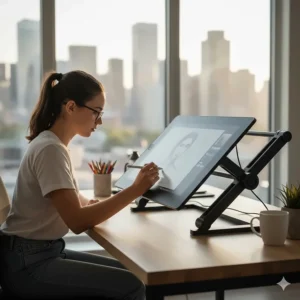
Once your shiny new tablet arrives from Amazon.ca, proper setup determines whether you’ll love or hate the experience. Here’s the Canadian student’s setup guide:
For Pen Displays (HUION, XPPen, Wacom Cintiq):
1. Driver Installation First
- Download latest drivers from manufacturer website (don’t use the CD!)
- Restart computer after installation
- Connect tablet AFTER drivers are installed
- Configure pen pressure curve in driver settings
2. Colour Calibration
- Use built-in calibration if available
- Adjust brightness to match laptop screen
- For accurate work, consider free DisplayCAL software
3. Workspace Ergonomics
- Position at comfortable angle (15-20 degrees typical)
- Ensure screen height prevents neck strain
- Place reference material on separate monitor when possible
For Standalone Tablets (iPad, Samsung Galaxy):
1. Essential App Downloads
- Drawing app (Procreate, Infinite Painter, etc.)
- Note-taking app (GoodNotes, Samsung Notes)
- File management (Files app on iPad, native on Android)
2. Stylus Pairing
- Apple Pencil: Simply attach magnetically to iPad
- S Pen: Works immediately, no pairing required
- Third-party styluses: Check manufacturer pairing instructions
3. Optimize Settings
- Disable lock screen timeout during drawing
- Adjust palm rejection sensitivity
- Configure double-tap shortcuts on stylus
Maintaining Your Drawing Tablet Throughout University
Your tablet investment should last your entire degree program. Canadian students face unique maintenance challenges:
Winter Protection:
- Never leave tablets in freezing cars overnight
- Allow 30 minutes to warm to room temperature before use
- Condensation can damage internal electronics
- Keep in insulated laptop sleeve during commutes
Screen Care:
- Clean weekly with microfiber cloth (not paper towels!)
- Use screen-safe cleaning solution (avoid harsh chemicals)
- Replace screen protectors annually
- Check for dead pixels early (within return period)
Stylus Maintenance:
- Replace nibs when worn down (affects accuracy)
- Store Apple Pencils attached to iPad (maintains charge)
- Keep spare nibs in pencil case
- Battery-free styluses require minimal maintenance
Software Updates:
- Update tablet drivers monthly
- Keep operating system current
- Backup artwork to cloud storage regularly (Google Drive, Dropbox, iCloud)
- Test major software updates on university computers first
FAQ
❓ What is the best budget tablet for digital art students in Canada?
❓ Do I need pressure sensitivity for digital art, or can I use a regular stylus?
❓ Can I use a drawing tablet with my Chromebook for university classes?
❓ Is an iPad better than a Wacom tablet for illustration students?
❓ What's the average cost of a good drawing tablet for students in Canada in 2026?
Conclusion: Choosing Your Creative Companion
After three months of testing, interviewing Canadian art students, and creating hundreds of digital illustrations, here’s the truth: there’s no single “best” tablet for digital art students—only the best tablet for YOUR specific needs, budget, and creative goals.
If you’re just starting your digital art journey and testing the waters, grab the HUION Inspiroy H640P for under $70 CAD. It’s affordable enough that you won’t stress about the investment while providing legitimate pressure sensitivity and compatibility with all major software. Think of it as your learner’s permit for digital art.
Students serious about building professional portfolios should invest in the $300-$600 CAD range. The HUION Kamvas 13 Gen 3 or XPPen Artist Pro 16 Gen2 deliver colour accuracy and screen size that transform your workflow without requiring a second mortgage. These pen displays work flawlessly with the Adobe Creative Suite taught at Canadian universities, setting you up for career success.
For those committed to portability or already invested in Apple’s ecosystem, the iPad Air M3 strikes the perfect balance between performance and price. Yes, adding the Apple Pencil Pro pushes your total investment above $1,000 CAD, but you’re getting a device that handles everything from detailed illustrations in Procreate to note-taking in lectures to entertainment during those long Canadian winter evenings.
Remember, the most expensive tablet sitting unused in your closet is infinitely less valuable than a budget option you actually use daily. Start with what you can afford, learn the fundamentals of digital art, and upgrade when your skills demand better tools rather than when your ego demands fancier equipment.
Your creative journey is uniquely yours. Whether you’re sketching character concepts at a Toronto café, designing logos in a Vancouver co-working space, or animating in a Montreal studio, the right tablet amplifies your vision rather than limiting it. Now stop researching and start creating—your next masterpiece is waiting.
Recommended for You
- 7 Best Complete Art Supply Kit for Middle School Canada 2026
- Best Colored Pencils for High School Art Class Canada 2026
- 7 Best Science Lab Notebooks & Supplies for High School Canada 2026
Disclaimer: This article contains affiliate links to Amazon.ca. If you purchase products through these links, we may earn a small commission at no additional cost to you.
✨ Found this helpful? Share it with your classmates! 💬🤗
